Description
This updated guide shows how you can use the external Microsoft Teams Meetings tool in Canvas to set up a a link for eLearning. If you would prefer to watch a video of this process, please follow this link: Updated Team Setup in Canvas
Steps
Setting up in Canvas
-
Open the Canvas page where you want the link, place cursor where you would like the link to be placed. Next, click on the "plug" icon and select "View All".
-
Scroll down and select the "Microsoft Teams Meetings" tool.
-
Click "Sign in" and if prompted, sign into Teams with your district account (sign in may happen automatically if you are already signed into the Teams app on your device).
-
Click on "Create meeting link".
-
Enter the name you want to give your meeting and set the start and end dates. (It is recommended to set the end date to the end of the course so that you can use the same link repeatedly as needed). When finished, click the "Create" button.
-
Click the button that says "Copy".
- Link now appears on your page! Remember to Save your edit!
Launching and Managing Meeting
- To launch the meeting, simply click the link that you have configured in Canvas. This will open and launch the meeting in the Teams app (assuming it is installed on your device). It is recommended that you launch the meeting after configuring the link in Canvas so that you can verify the meeting Settings are configured as desired.
- After launching meeting, click on "More" -> "Settings" -> "Meeting options" to configure the settings for your meeting space.
- Under "Security", be sure to have "Only organizers and co-organizers" select for who can bypass the lobby. This ensures that students cannot enter and access the virtual meeting space without the teacher present.
- Under "Engagement", it is recommended that you either have the Meeting chat set to "Off" or "In-meeting only" to help ensure that students cannot engage in the chat outside of the active meeting space.
- Once you have the desired settings, remember to click "Save".
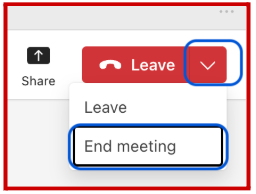
**IMPORTANT** At the end of each session, the teacher must select the drop down arrow and then "End Meeting" to close the meeting space for all participants. If the teacher clicks "Leave", the space will remain open for students to continue on in the space without teacher supervision
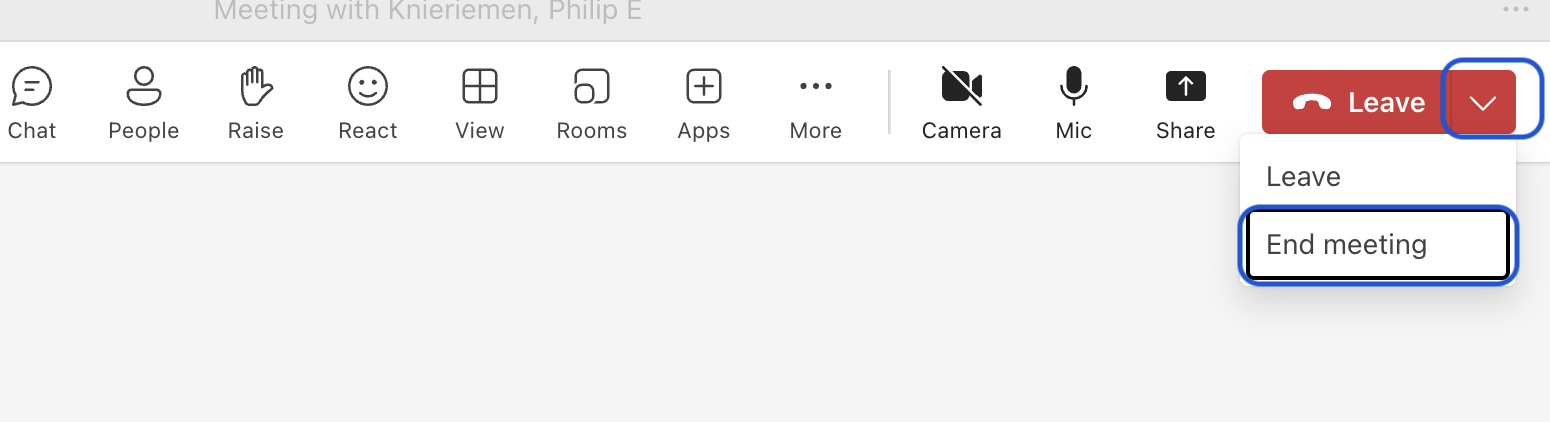
After the link has been configured and the meeting settings have been set, you can reuse the same link to access the meeting space for that class anytime it is needed. You do NOT need to configure a new link for subsequent meetings. If you have multiple classes in Canvas, it is recommended that you configure a link and adjust the meeting settings separately for each class.
**REMEMBER TO END MEETING**
Questions
If you have any further questions please put in a Helpdesk Ticket and select "Canvas" for the request type.